
Live connection list
Every remote internet connection your computer is making, refreshing continuously.
Tool 01 · who_is_my_pc_talking_to.py
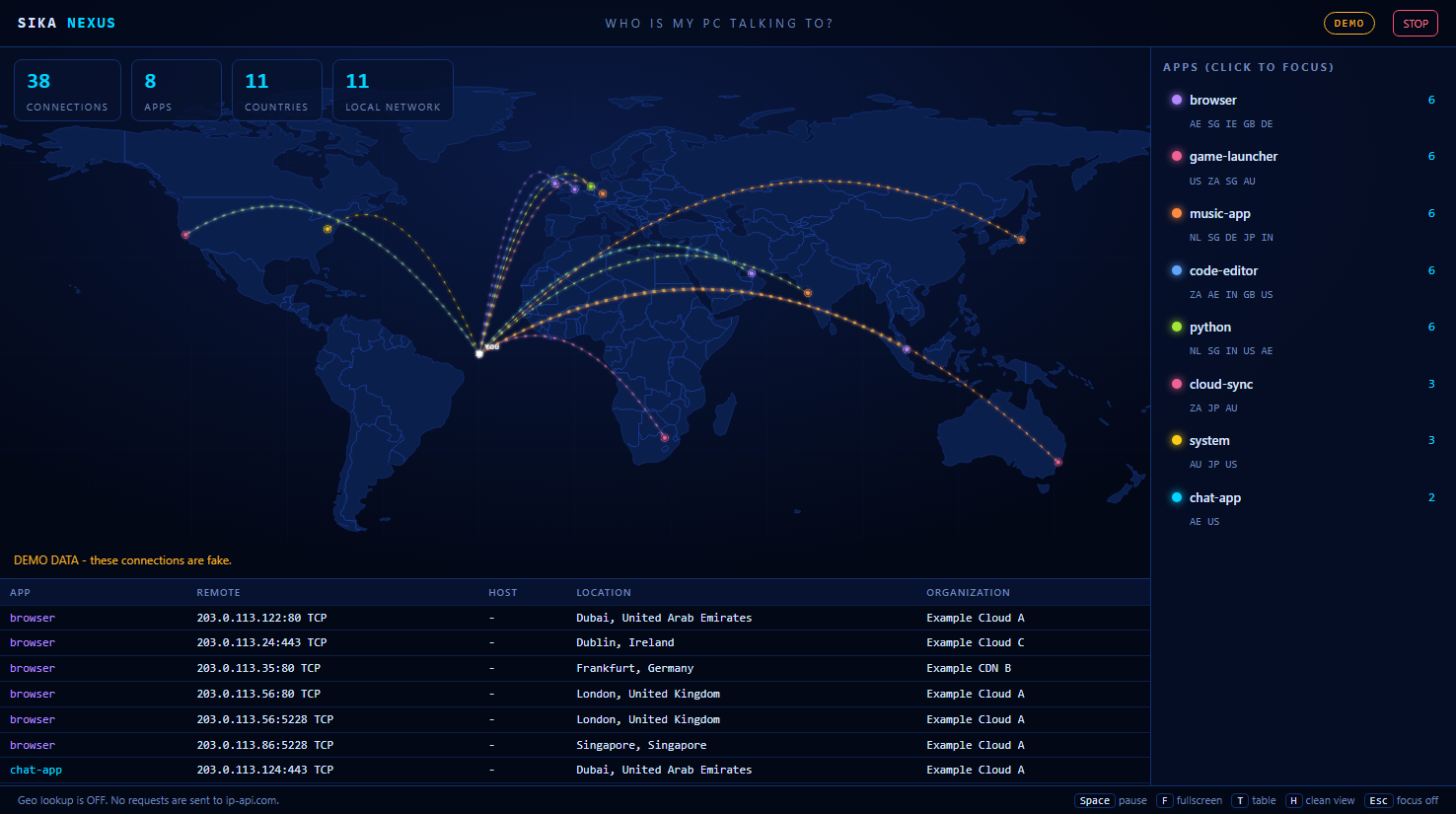
A local dashboard that shows the remote internet connections your own computer makes, the app that owns each one when the OS provides it, the remote IP, port and protocol, and — optionally — the approximate location of each remote address on an animated world map.
It does not capture packets and does not read the contents of traffic. It reads connection metadata from the operating system.
// features
Everything happens on your machine, in a browser tab pointed at 127.0.0.1.
Every remote internet connection your computer is making, refreshing continuously.
Shows which application owns each connection, when the operating system provides that information.
Remote IP address, port and protocol for each connection.
Optional approximate location of each remote address, drawn as animated arcs on a world map.
Click an app to focus only its connections and hide the noise.
Space pause · F fullscreen · T toggle table · H clean view · Esc clear focus.
Stop it from the dashboard when you want to end the session.
Run with --demo to explore the interface with fake sample data instead of your own connections.
No packet capture, no traffic contents — only connection metadata read from the OS.
// how it works
The script asks the operating system for its current network connections and the process behind each one.
Where the OS reports it, each connection is labelled with the app that owns it. If geolocation is on, remote addresses are looked up to show an approximate place on the map.
A dashboard is served at http://127.0.0.1:8765 and opens in your browser. Press STOP or close it to end the session.
// quick start
Unzip the download, open a terminal in that folder, and use one of the commands below.
# run.bat — double-click it, or run from a terminal
run.bat# run.sh
sh run.shpython who_is_my_pc_talking_to.pypython who_is_my_pc_talking_to.py --demoThen open
http://127.0.0.1:8765The browser opens automatically unless you pass --no-browser.
Run with elevated rights for full visibility
Run as Administrator on Windows, or with sudo on macOS and Linux. Without elevation you only see the processes your own user account can inspect, so some connections will be missing.
// reference
| Option | What it does |
|---|---|
| --demo | Runs on fake sample data instead of your computer's real connections. |
| --no-geo | Disables geolocation, so no requests are made to ip-api.com. The map is not available. |
| --no-browser | Does not open a browser window automatically. You open the address yourself. |
| --port N | Serves the dashboard on a different port instead of 8765. |
// privacy
This tool is local-first, but it is not perfectly offline by default. Here is exactly what happens.
Use it only on your own computer
This is a diagnostic tool for your own machine. It shows connections that already exist — it does not create them, and it does not block anything.
Hardening in the dashboard
// faq
It is a single Python file with one dependency, published under the MIT license, and you can read every line before running it. Run it only on your own computer, prefer --no-geo if you do not want any outbound lookup requests, and use the STOP button or close the terminal when you are done.
The operating system hides connection details of processes owned by other user accounts from an unprivileged process. Running as Administrator on Windows, or with sudo on macOS and Linux, gives the script the visibility it needs to show you the full picture instead of a partial one.
Because that is where the server is. Updates, streaming, mail, and content delivery networks routinely use servers in other countries, and geolocation data is approximate — a pin often marks a hosting provider's data center rather than the company that owns the service. A connection to a country is not, by itself, evidence of anything.
Yes. When a VPN is active, your traffic leaves through the VPN, so the remote addresses become the VPN servers. The YOU marker on the map shows the VPN exit node, which is not your real location.
No. It does not capture packets and does not read the contents of traffic. It reads connection metadata from the operating system: who is connecting, to which remote IP, port and protocol. Nothing about the data you send or receive is inspected.
--no-geo stops the geolocation lookups to ip-api.com. Reverse DNS lookups are separate: they use your system DNS resolver, which may send remote IP addresses to that resolver. Use your own judgement about what your resolver sees.
One Python file, MIT licensed, public on GitHub. If the code does not match what this page describes, do not run it.